
Crop a photo online
Cropping removes parts of an image around its edges. Use it to change the composition, remove distractions or fit a photo into a square or wide frame.
PhotoPWA processes the image in your browser. You do not need an account, and saving your crop creates a new file rather than overwriting the original.
Choose a crop and save it
- Open the photo editor and select an image from your device. Wait until you see the photo in the canvas.
- Choose Crop. The crop controls show the selection and its aspect ratio.
- Choose Free to set your own shape, or select a fixed ratio such as 1:1, 4:3 or 16:9. Portrait ratios are available too.
- Move the selection onto the part of the photo you want to keep. Drag its edges or corners to adjust the area. Check that the main subject has enough space around it.
- Choose Crop Image to apply the selection, then close the crop controls.
- Use the export button under Save as Image for PNG or JPG. Save the result with a new filename.
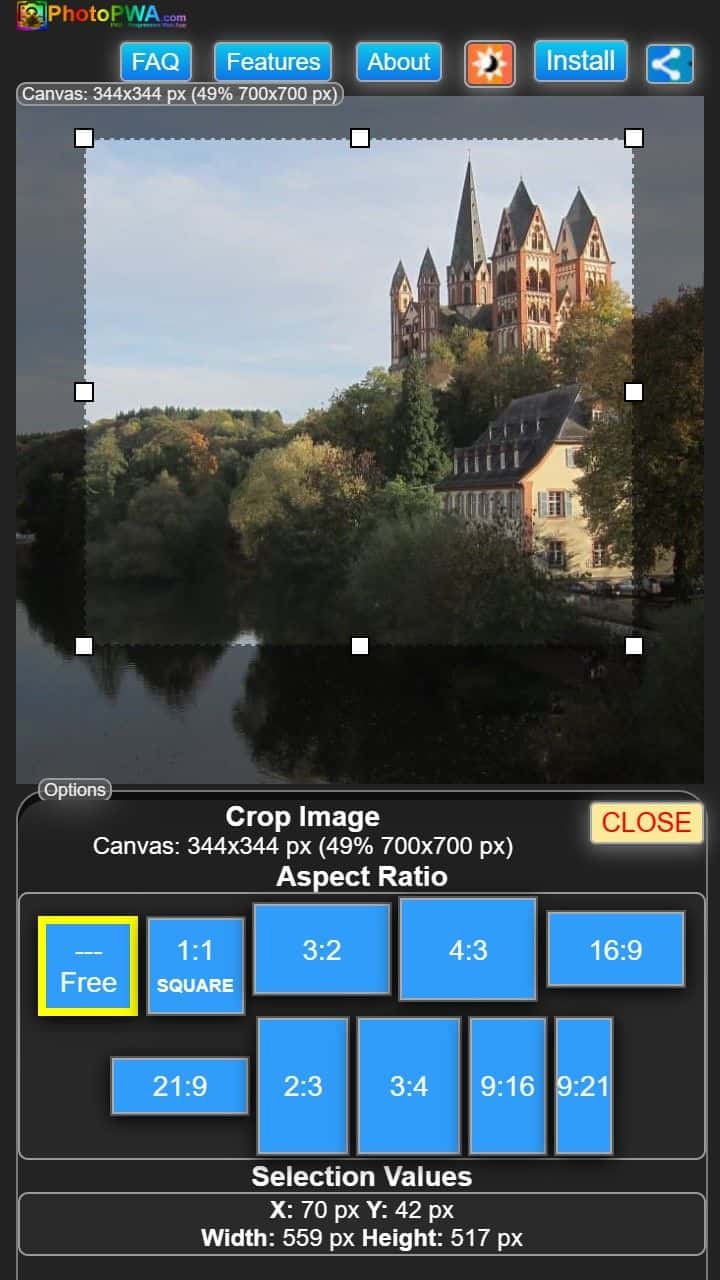
Which aspect ratio should you use?
| Ratio | Typical use |
|---|---|
| 1:1 | A square image or profile graphic. |
| 4:3 or 3:2 | A landscape photo with more height than a wide banner. |
| 16:9 | A wide image for a header or presentation. |
| Free | A custom crop when no particular shape is required. |
A ratio determines the shape, not the final pixel dimensions. A 1600 × 900 image and an 800 × 450 image both have a 16:9 ratio. If you need a specific output size, crop first and resize the image afterwards.
Avoid losing useful detail
A tight crop keeps fewer original pixels. If you then enlarge that crop, fine details can look soft. Keep a copy of the original so you can try another selection. Check small details at the size at which the picture will be displayed.
JPG is a practical choice for ordinary photographs. Use PNG when you need to preserve transparency. Cropping changes the image content; it does not by itself guarantee a particular file size.
If the controls are hard to reach
On a small screen, scroll to the crop options or rotate your phone for more room. A very large photo can take longer to process. If an image from a web address does not load, try a file saved on your device; remote hosts can restrict access from another website.