
Color splash: keep one color in a photo
A color splash effect keeps a selected color range visible while the rest of a photo becomes black and white. A red flower against a mostly neutral background is a useful starting image.
PhotoPWA's color controls work on colors across the image. They are useful for selective color effects, but they do not automatically isolate an object or provide a brush mask.
Apply the selective color effect
- Open the editor and choose a photo from your device. Start with a subject whose color differs from its surroundings.
- Open Colors in the image controls.
- Use the controls under Edit Dominant color to choose the color range you want to keep. Compare the result with the preview as you adjust the color settings.
- Check other areas of the image with similar colors. They may stay in color too, because selection is based on color rather than the shape of an object.
- If you also want to change the retained hue, adjust Shift Hue. Leave it unchanged when you want to keep the original color.
- Save a new PNG or JPG using the export controls.

Choose a photo that suits the effect
A distinct color and a simple background make the selection easier to understand. If both a person's clothing and an object behind them are red, a red selection can affect both. This is expected behavior, not a precise object cutout.
Reflections, shaded parts and pale highlights can fall into different color ranges. Inspect those areas before saving. If the result is uneven, try a photo with clearer color separation instead of forcing the same settings onto every image.
Change the selected color
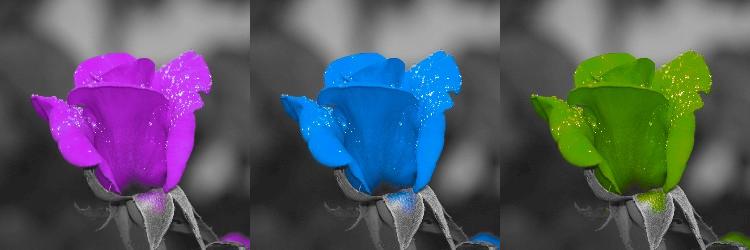
Shift Hue changes the hue of the selected color. Adjust it gradually and watch for changes elsewhere in the picture. For a product photograph where the color must be accurate, keep an unedited reference and avoid treating the result as proof of the product's real color.
Color splash or duotone?
Color splash preserves a selected color range in an otherwise monochrome image. Duotone gives an image a two-color treatment. PhotoPWA includes duotone presets in a separate tab; see the feature overview if you want the whole photo to share a two-color palette.
Save and check the output
Choose JPG for an ordinary photograph or PNG when transparency matters. View the saved file as well as the editor preview. If the result is intended for a small website image, reduce its dimensions before the final export.